
This article will guide you through the process of enabling the sign-in feature on the Userology platform.
1. Accessing the Settings
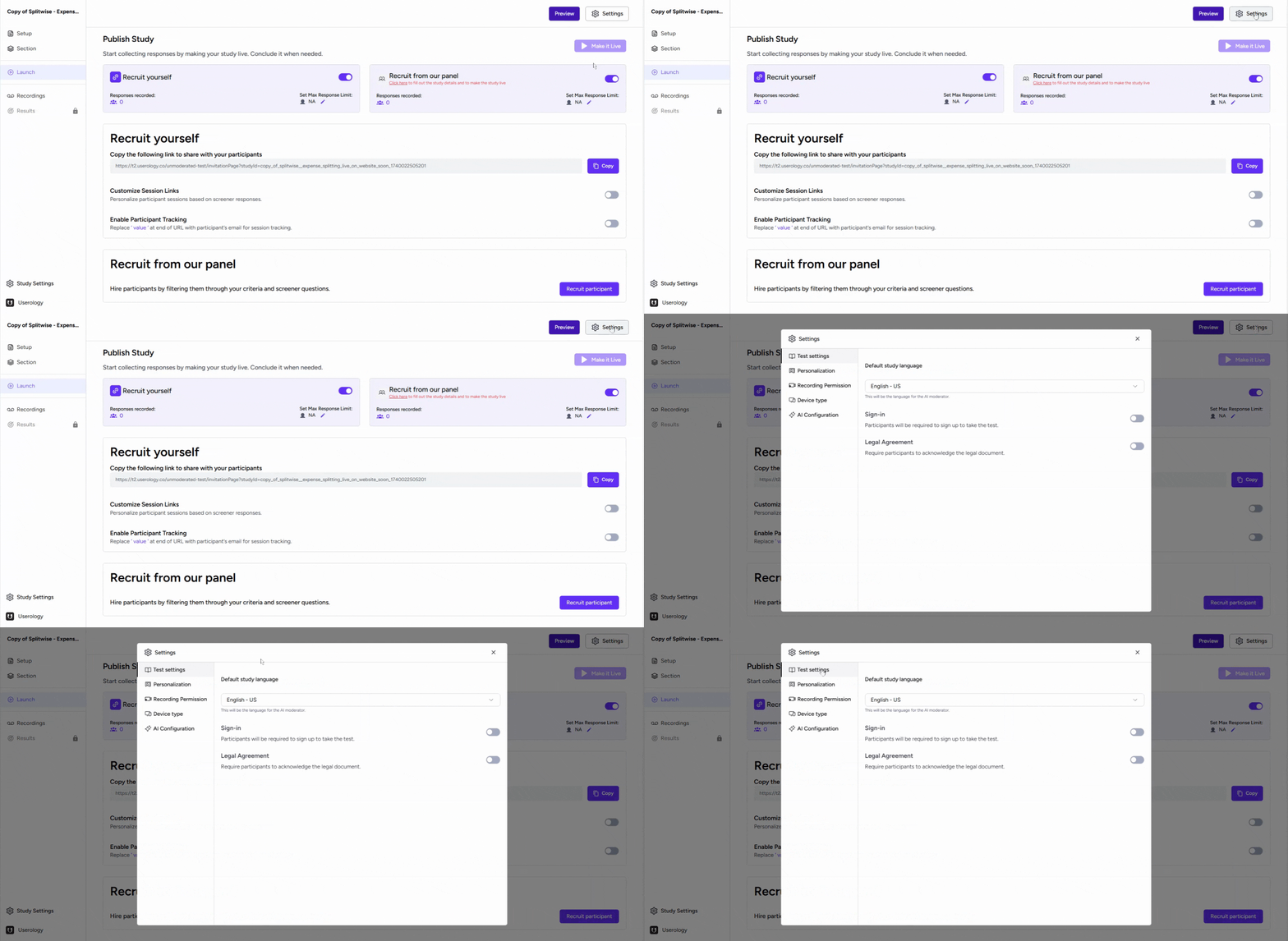
Navigate to the Launch tab of your study and click on the Settings button.
2. Enabling the Sign-In Feature
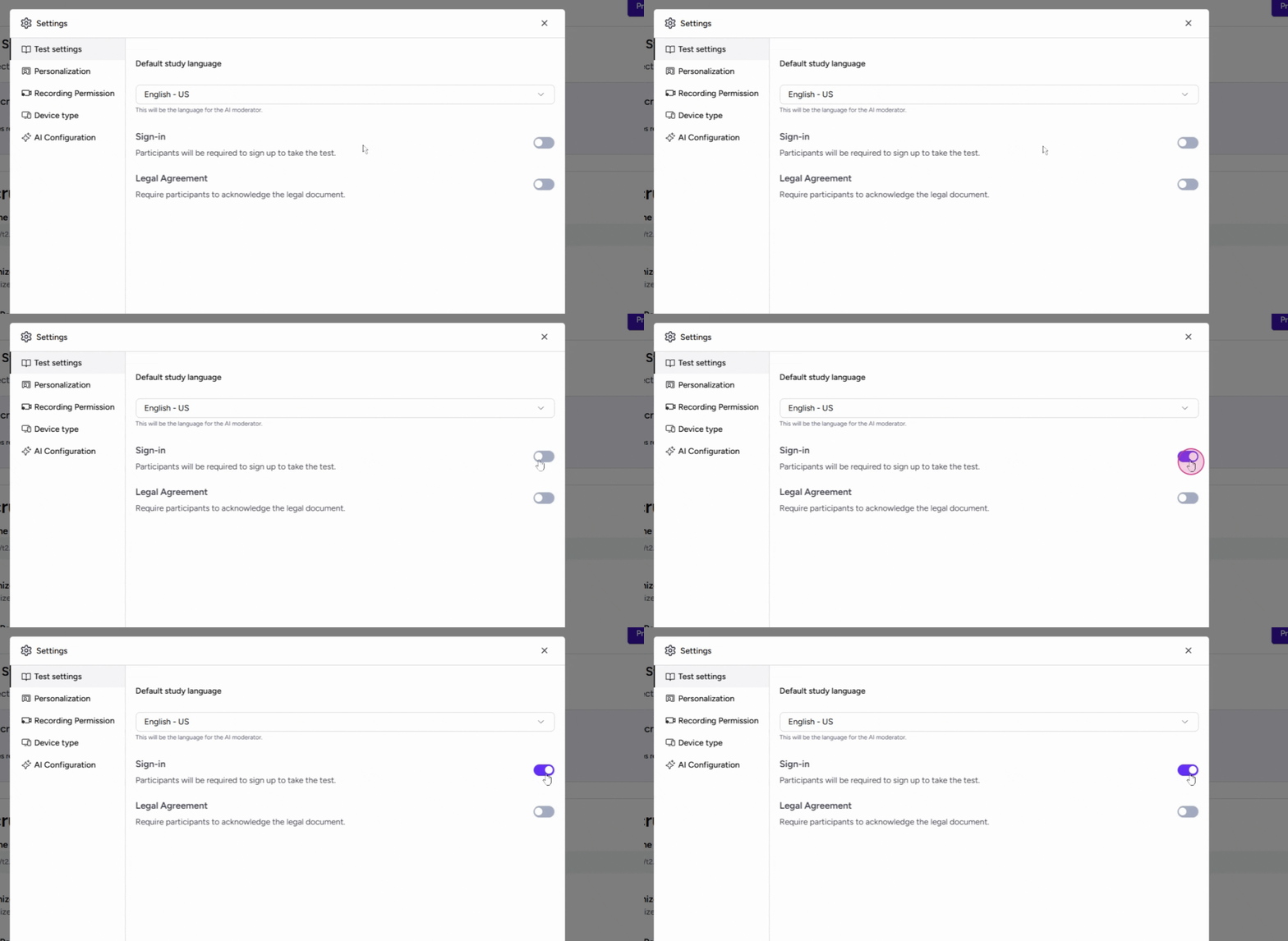
In the Settings tab, locate the sign-in button. Enable this button to require participants to sign up before they can take the test.
3. Previewing the Study
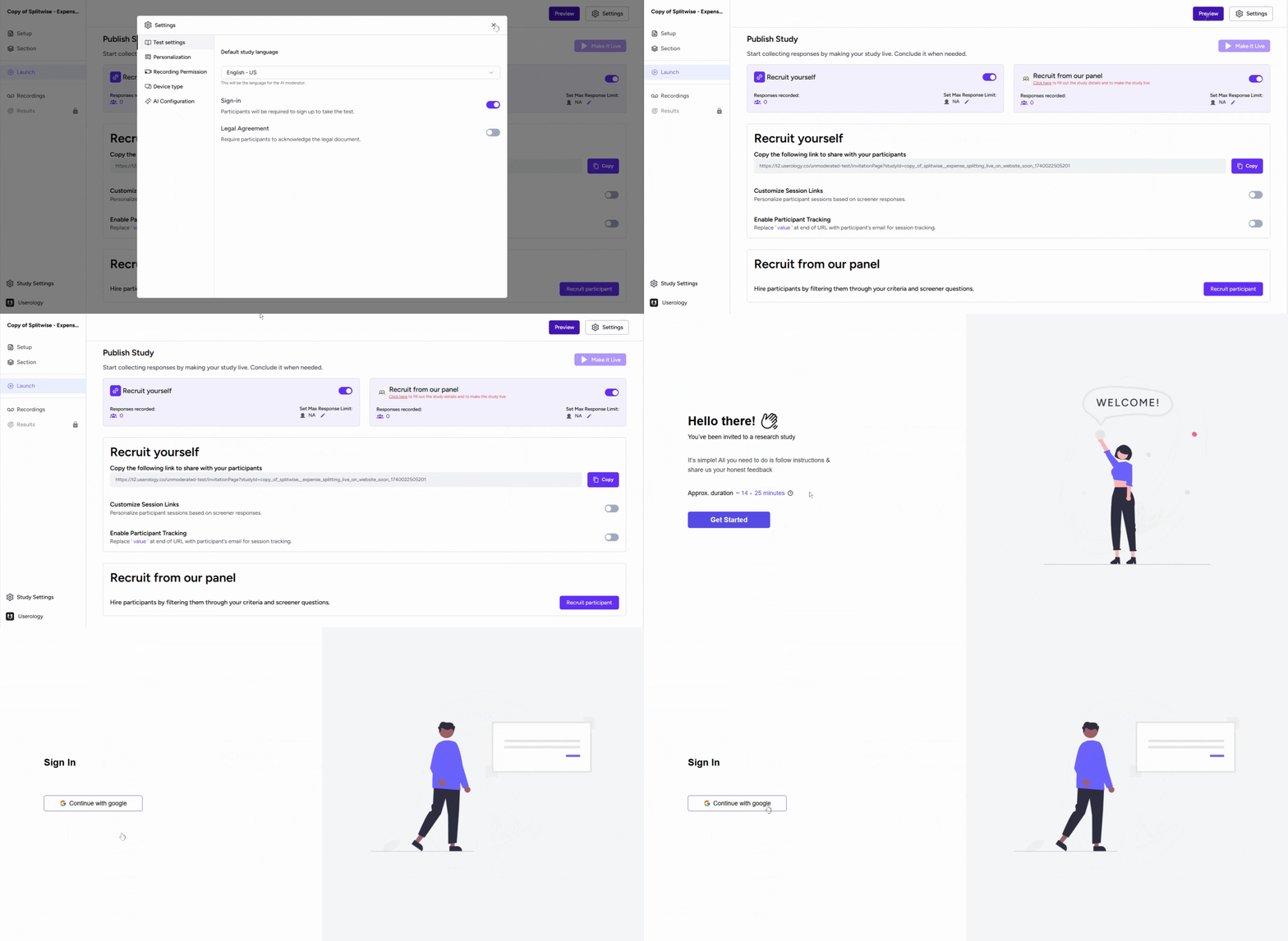
To understand the participant's experience, preview the study. You will be asked to sign in before you can start the test, just like your participants.
Once you've signed in, you can start the test as usual.
If you need further help, please email us at support@userology.co
Was this article helpful?
Thank you for your feedback!