
Userology's AI generates insights at multiple levels, from session-level analysis to moderator instructions in your interview plan. If the AI output doesn't meet your expectations, or if you've made changes to your study, you can regenerate these insights to get fresh, updated analysis.
Regenerating Session AI Overview and AI Findings
When viewing a participant session in the Recordings section, you can regenerate the AI Overview and AI Findings. Click View session to open the session view, then click the Regenerate icon (circular arrow) in the top-right toolbar. Hover over the icon to see the tooltip: "Regenerate session overview and findings".
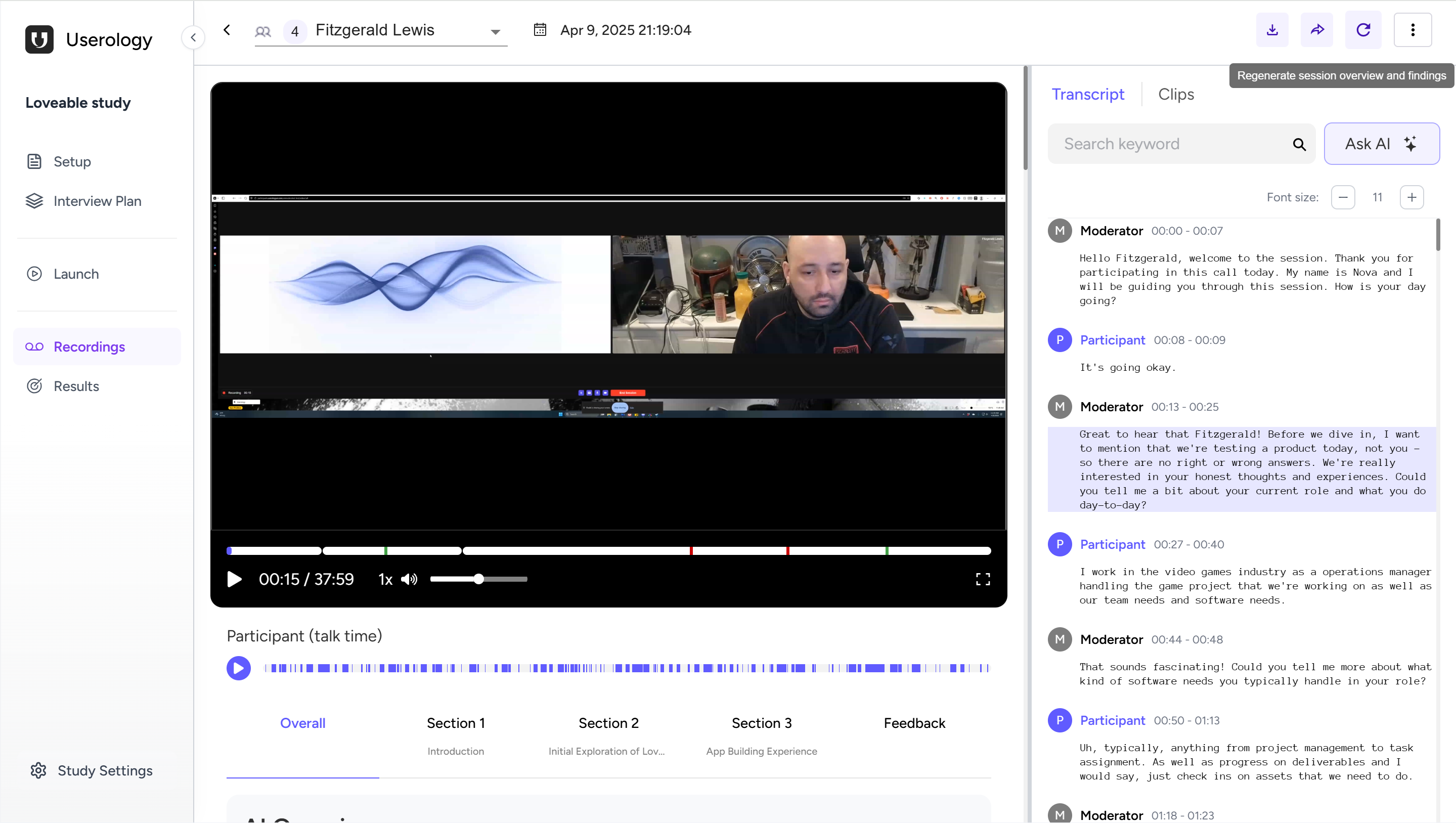
Once regenerated, the updated AI Overview and AI Findings are reflected across your study results, including Qualitative Results, Quantitative Results, and any generated reports.
Note: Regenerating replaces existing insights - the previous version is not saved. Multiple regenerations are allowed with no limit on attempts.
Regenerating Moderator Instructions
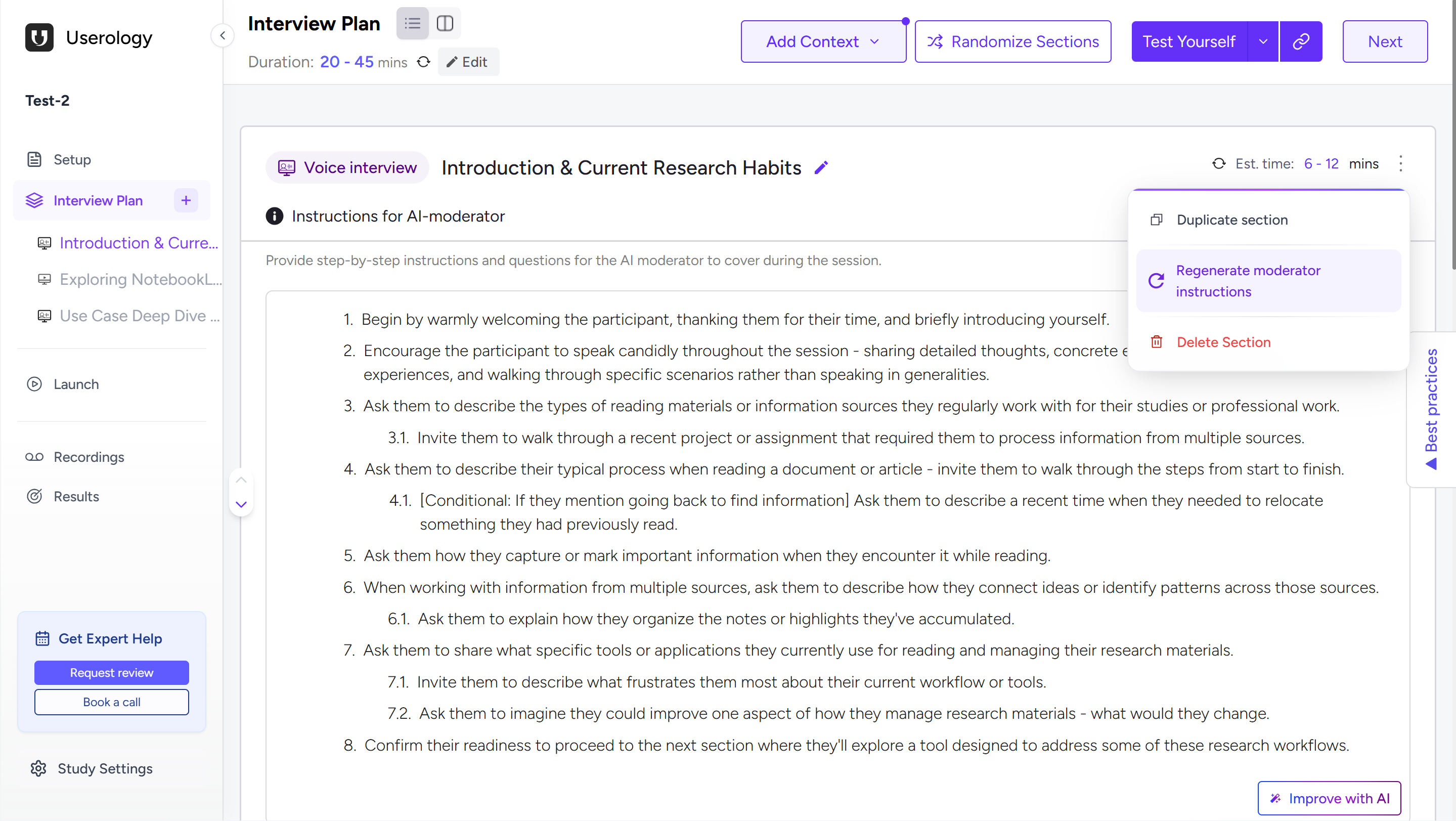
Moderator instructions guide the AI moderator on how to conduct each section of your interview. To regenerate them, navigate to Interview Plan, select the section you want to update, click the three-dot menu (⋮) in the section header, and select Regenerate moderator instructions. This is only available for studies that are Live or Paused, not for concluded studies.
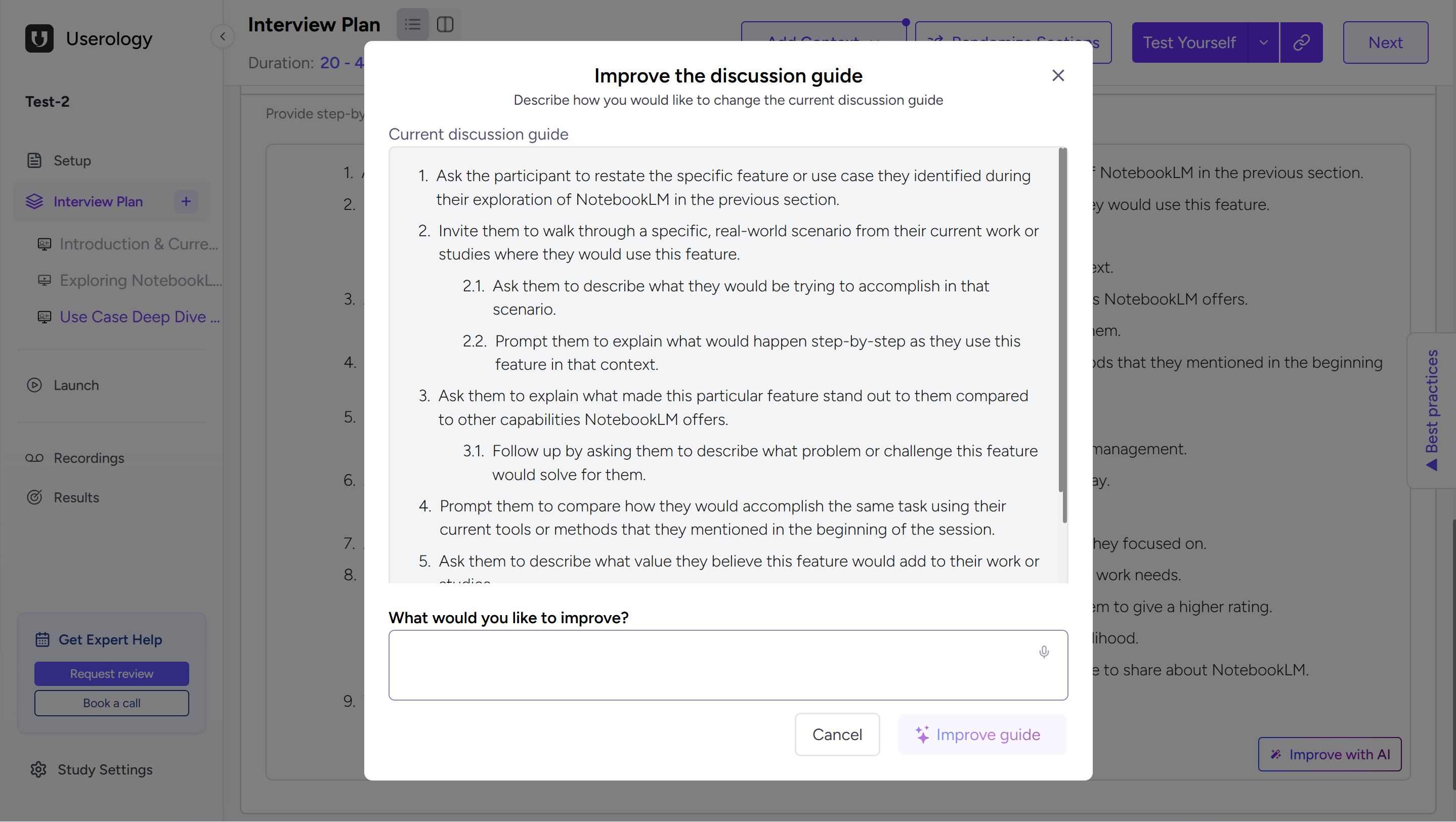
You can also use Improve with AI to refine your discussion guide. Click Improve with AI at the bottom of a section to open a modal showing your current guide. Describe what you'd like to improve in the text field, such as adding follow-up questions, simplifying language, or focusing on specific topics, then click Improve guide to apply the changes.
If you need further help, please email us at support@userology.co