
This article provides a step-by-step guide on how to manage your team and invite teammates on the Userology platform.
1. Accessing the "Manage team" settings
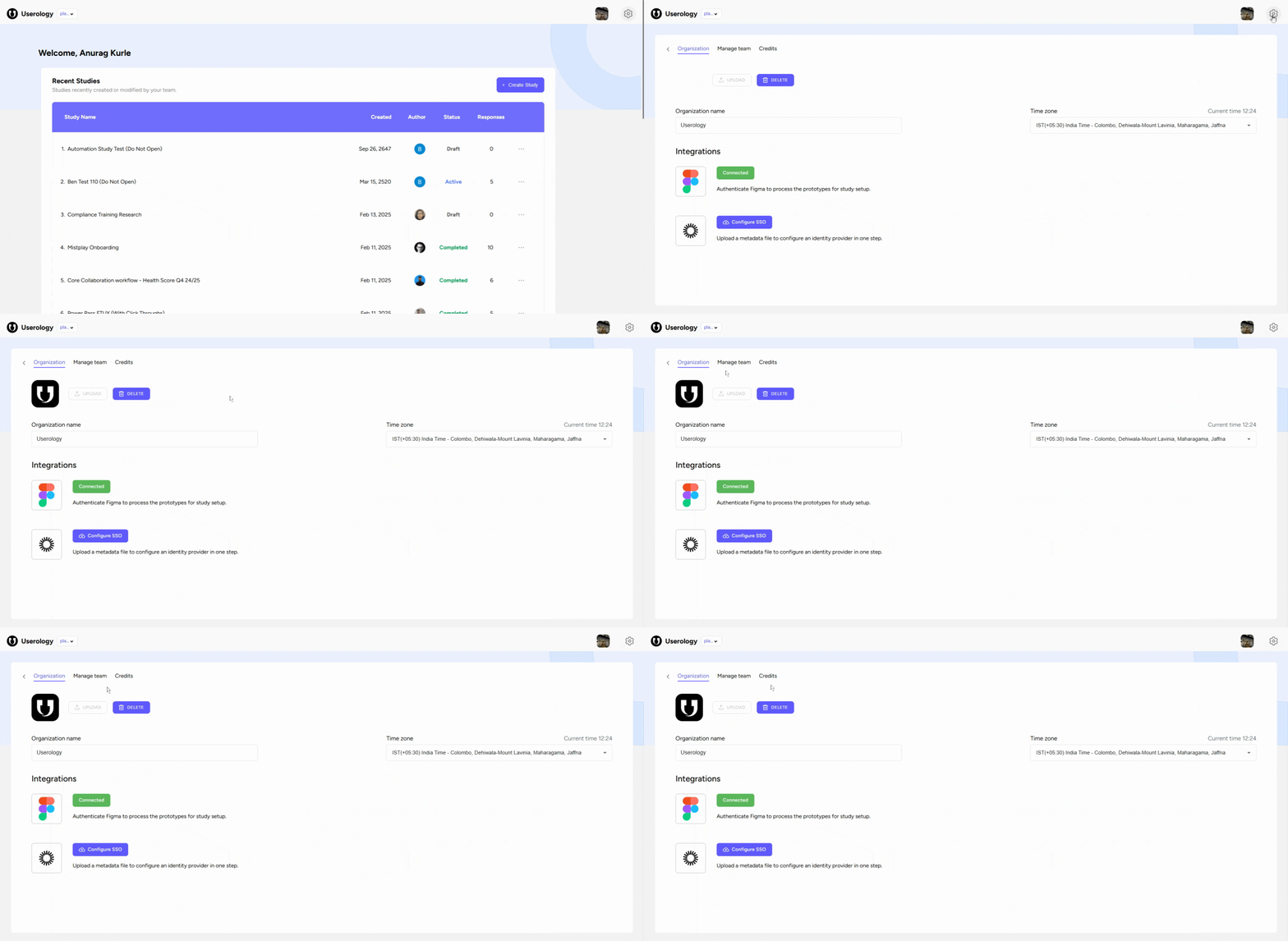
To access the settings on your Userology platform dashboard, find the settings icon in the top left corner. Click on it to display various tabs such as 'Organization', 'Manage Team', and 'Credits', then proceed to the 'Manage Team' tab.
2. Adding Domains and Inviting Team Members
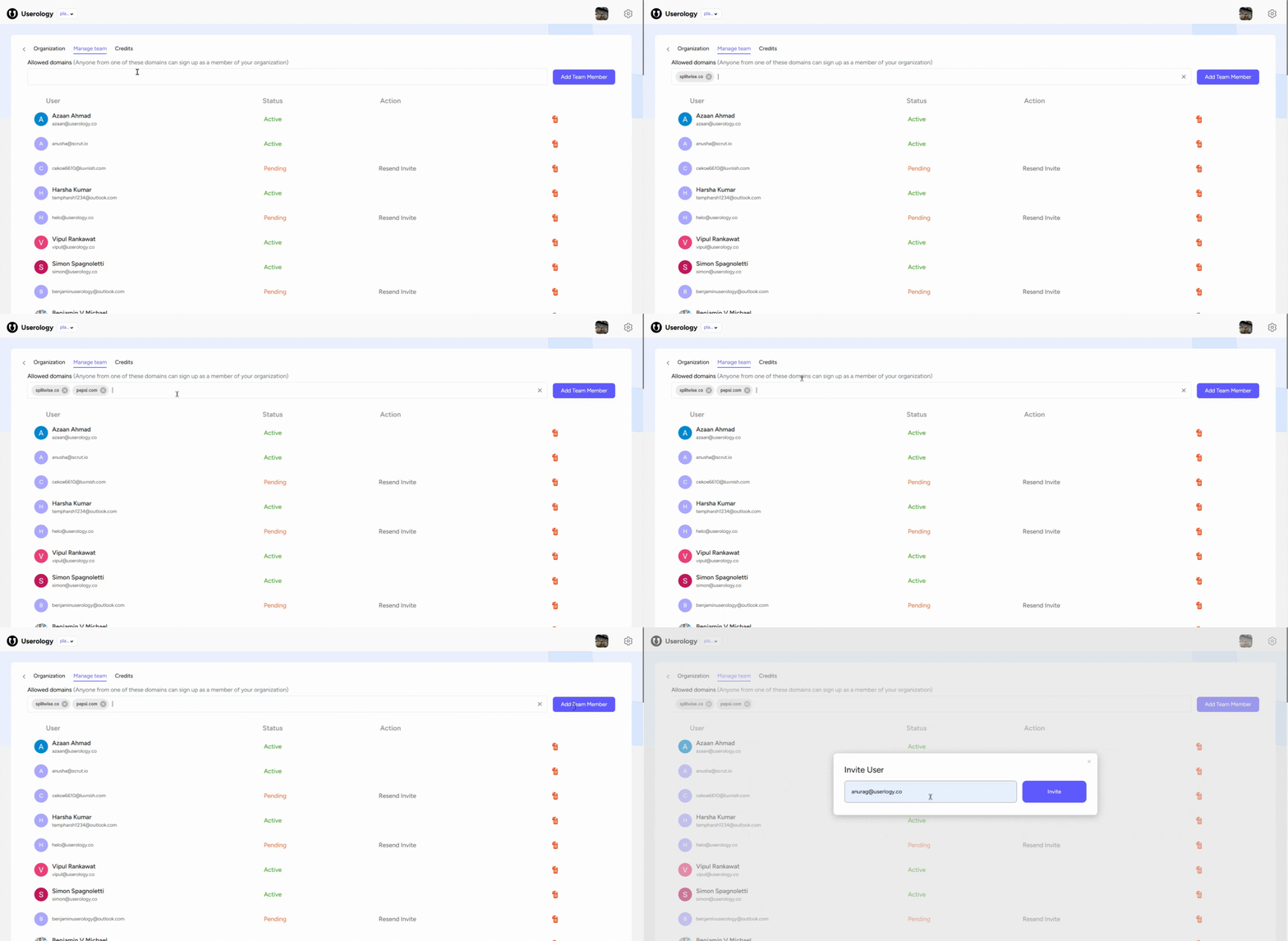
To allow teammates to join automatically, add domains (e.g., 'splitwise.co' or 'pepsi.com') and press enter. Anyone with these domains in their email address can sign up as a member of your organization.
Alternatively, you can directly invite team members by adding their email addresses and clicking the 'Invite' button. This will send them an invitation link to join the platform.
3. Removing Team Members
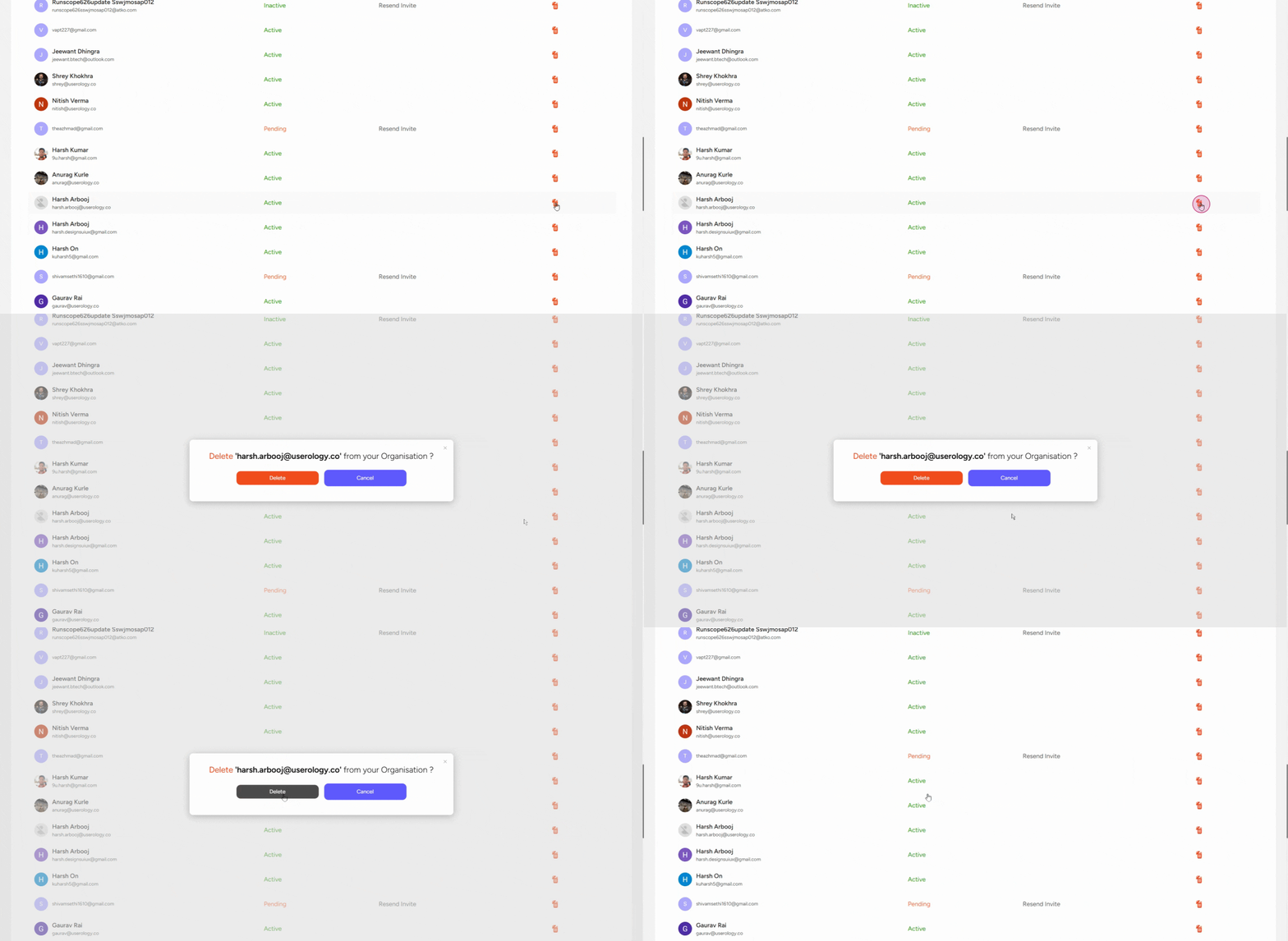
If necessary, remove members by clicking the 'Delete' icon next to their name.
Confirm your decision to delete the member. Once deleted, they will no longer have access to the platform.
If you need further help, please email us at support@userology.co
Was this article helpful?
Thank you for your feedback!